Audit Logging Guide
Audit logging helps organizations track sensitive actions, meet compliance requirements, and investigate incidents. This guide explains how to enable, configure, and use audit logs in Eneo.
For developer-focused details, see Audit Logging (Technical).
What audit logging covers
Audit logs capture actions such as:
- User and role management (create, update, delete)
- Assistant, space, and app changes
- Security classification and access updates
- File and integration events
- Audit log access and exports
Logs are stored in PostgreSQL and are scoped to your tenant.
Enable audit logging
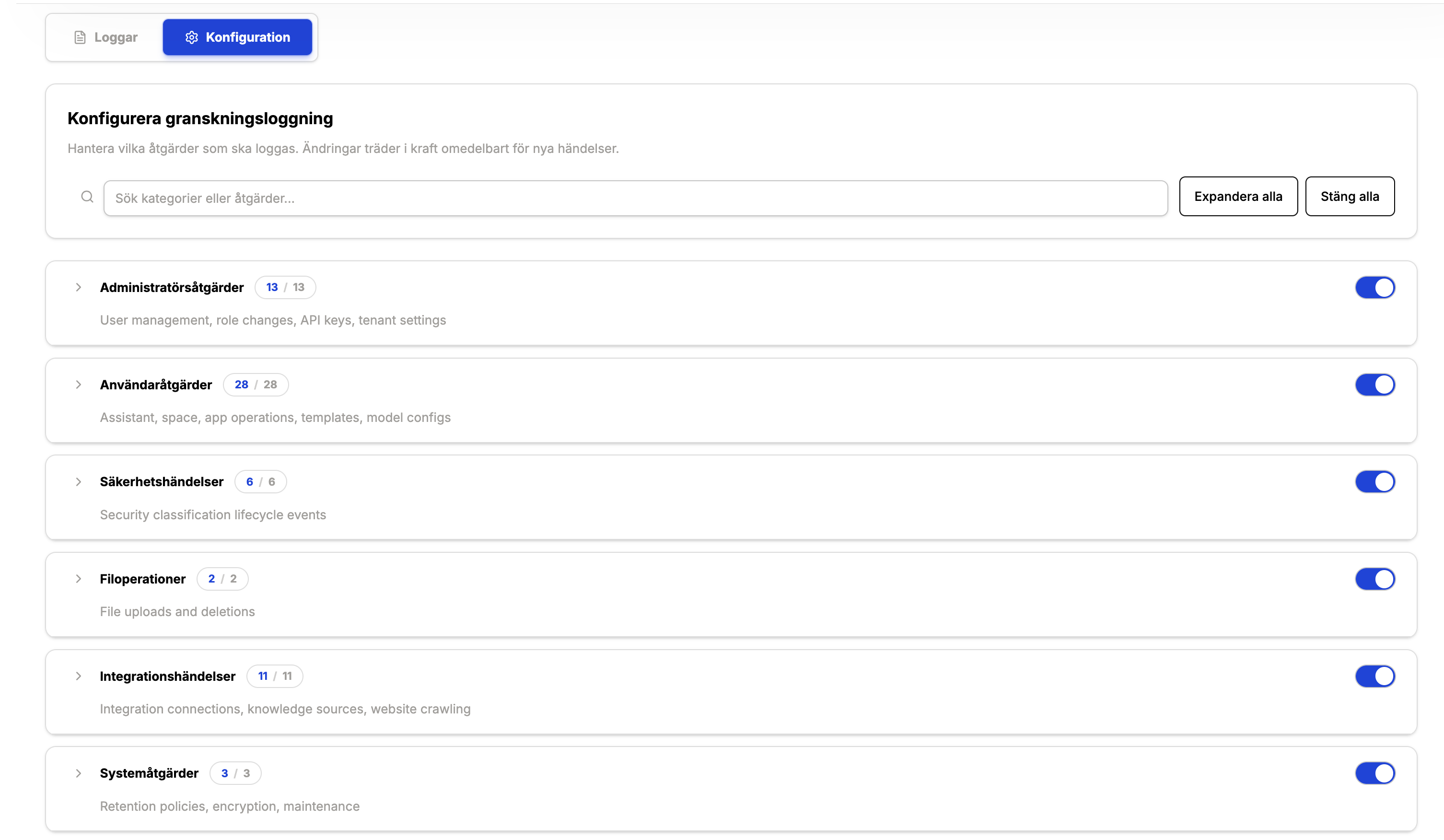
Audit logging can be turned on or off globally in the admin UI.
- Go to Organization → Granskningsloggar (Audit Logs)
- Use the global toggle to enable or disable logging for your tenant
When disabled, no new audit logs are created.
Configure what gets logged
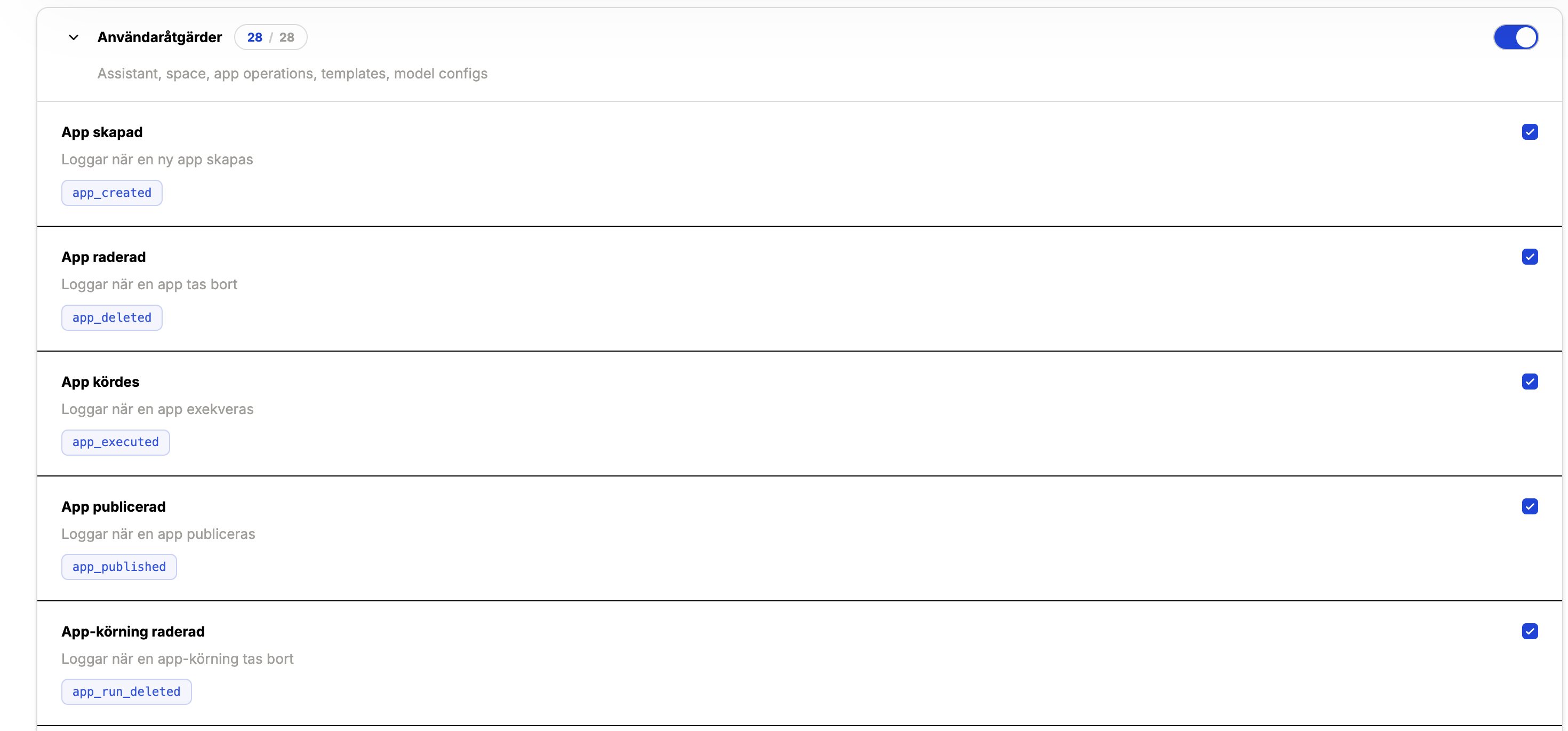
You can fine-tune logging in two levels:
- Category toggles — enable/disable entire groups of actions (e.g., Administrator actions).
- Action toggles — enable/disable specific actions within a category (e.g.,
user_created).
Changes apply immediately for new events. Historical logs remain unchanged.
Viewing audit logs
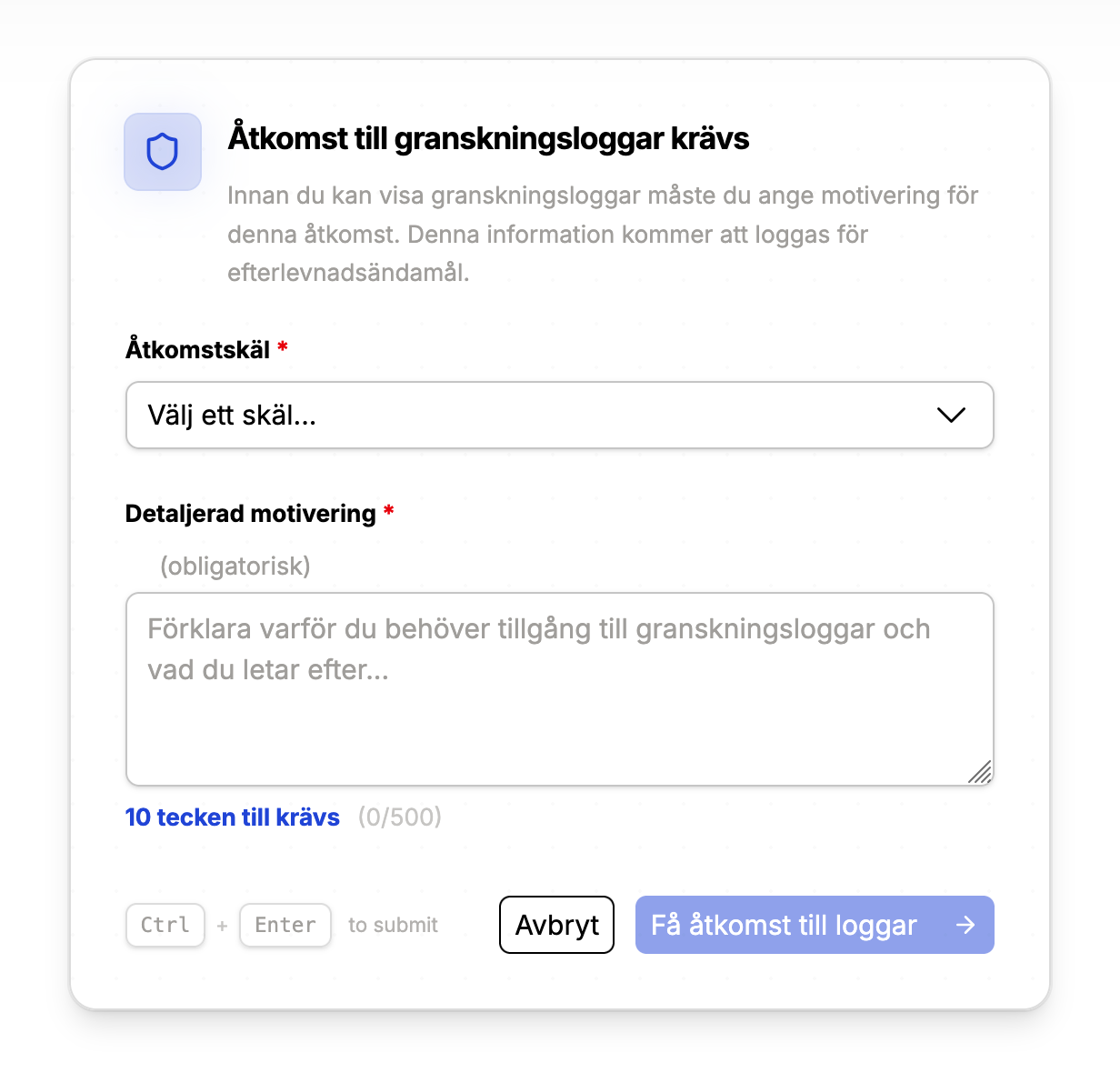
Access to audit logs requires an access justification. This ensures you can track who accessed logs and why.
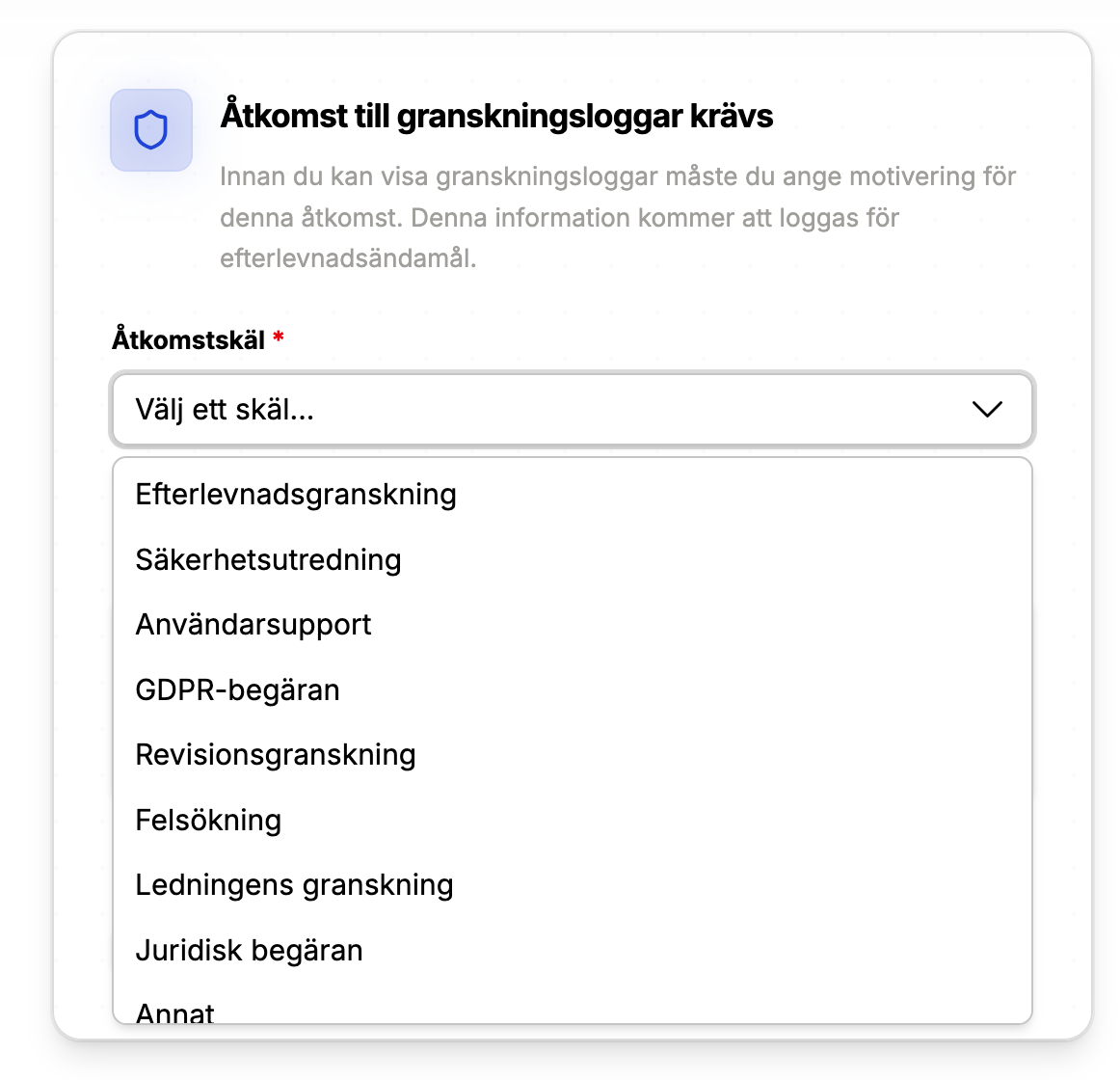
When you enter the audit log view, you will be prompted to:
- Select a reason category (e.g., GDPR request, investigation)
- Provide a written justification
The access event itself is logged and included in the audit trail.
Filters and search
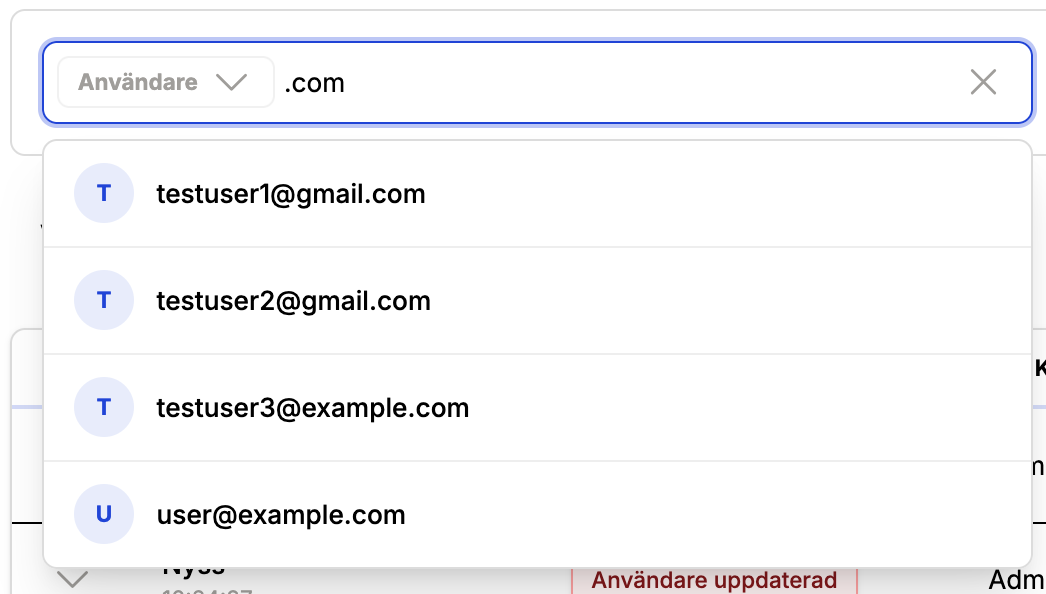
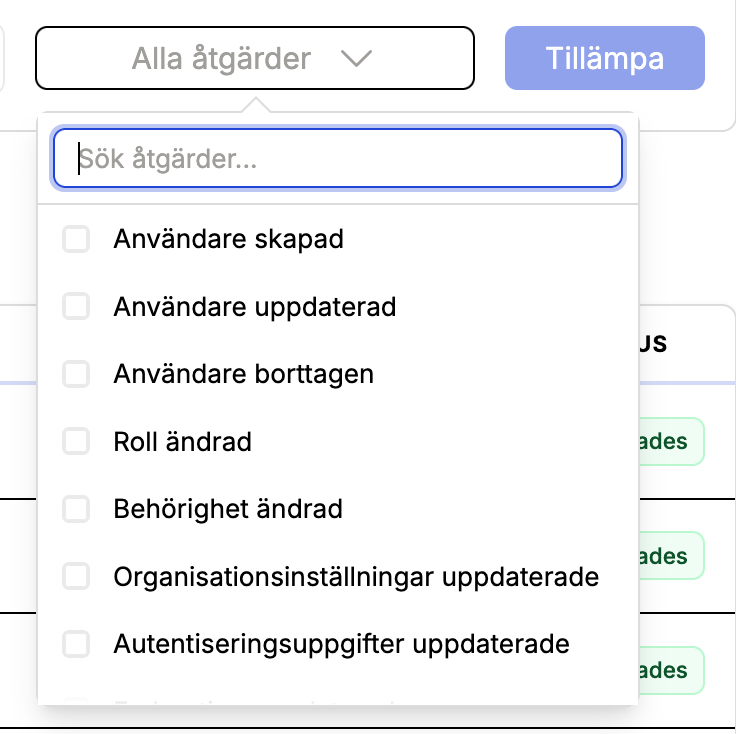
You can filter logs by:
- Entity (e.g., user, assistant, app)
- Action (multi-select)
- Date range
- Actor (user search)
Free-text search matches the log description. If you want a name or identifier to be searchable, include it in the log description or metadata.
Log details and JSON
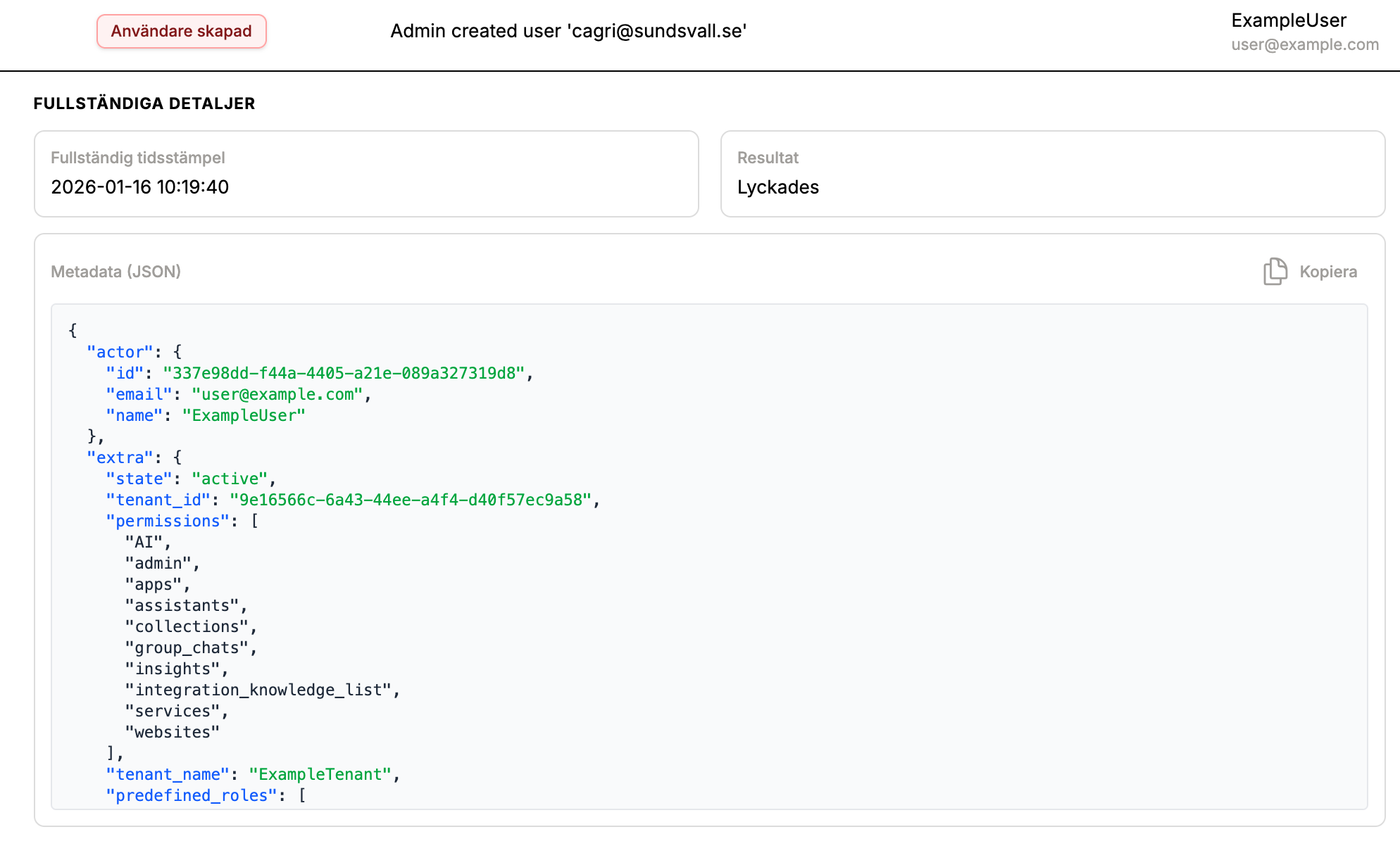
Each log row expands into a detail view with:
- Full timestamp and status (success/failure)
- Human-readable description
- JSON metadata (copyable)
This metadata includes actor and target snapshots for reliable investigation even if data changes later.
Retention policies
Audit log retention
Audit log retention is configured per tenant and enforced by a daily purge job. Logs older than the retention period are permanently deleted.
Conversation retention hierarchy
Conversation data (questions and app runs) follows a hierarchy that can be tuned per space, assistant, or app:
- Assistant or App
data_retention_days(if set) - Space
data_retention_days - Tenant-level conversation retention (if enabled internally)
nullmeans keep forever
How to use it:
- Set retention at the space level to give all new assistants/apps a default policy.
- Override retention at the assistant or app level when a specific workflow needs shorter retention.
- Set
data_retention_daystonullto remove an override.
Exporting audit logs
Audit logs can be exported from the UI for compliance or incident response.
- Formats: CSV or JSON Lines (
.jsonl) - Large exports: handled asynchronously for performance and stability
Exported files are retained for 24 hours before cleanup.
UI walkthrough
Access justification

Best practices
- Keep audit logging enabled for production tenants.
- Use action-level toggles instead of disabling whole categories.
- Set retention policies that align with regulatory requirements.
- Use async exports for large time ranges.
Roadmap
We plan to support external audit sinks (e.g., SIEM or analytics pipelines) so long-term storage can be moved out of the primary database when needed.
Need developer details? See the Audit Logging (Technical) documentation.