Document Processing
Eneo’s document processing capabilities allow you to create AI-powered knowledge bases from your documents and websites. This guide covers uploading documents, web crawling, and how retrieval is configured.
Overview
Eneo can process and extract knowledge from:
- Documents: PDF, Word (.docx), PowerPoint (.pptx), Excel (.xlsx, .xls), CSV, JSON, XML
- Websites: Automated crawling and content extraction, optionally including linked documents
- Text files: Plain text, Markdown
All content is:
- Extracted from source format
- Chunked into optimal segments
- Embedded as vectors for semantic search
- Published as one searchable version in PostgreSQL with pgvector
- Retrieved when relevant to queries
Updating a document does not remove the working knowledge first. Eneo publishes the replacement text and all vectors together. If extraction or embedding fails, search continues to use the previous complete version. Uploading the same content again with the same embedding model reuses the current version without another embedding call. Changing the model builds compatible vectors before the replacement becomes searchable.
This is separate from file-byte placement. PostgreSQL remains the complete default; compatible object storage is optional and does not replace pgvector.
Uploading Documents
Documents live in collections, and collections belong to a space. Every collection is bound to one embedding model, chosen from the models enabled in the space when the collection is created.
Create a Space
- Log in to your Eneo instance
- Click Spaces in the sidebar and create a space, or open your personal space
- Make sure at least one embedding model is enabled for the space; the collection dialog refuses to continue otherwise
Create a Collection
- Open the space and click the Knowledge tab
- Under Collections, click Create collection
- Give it a name and pick the embedding model
Upload Files
- Open the collection
- Drag files onto the page or click Upload files
Each file becomes one background job. The job list shows the job as queued, in progress, and finally complete or failed; the frontend polls job status automatically, so there is no need to refresh.
Supported Formats
In the upload area, expand File types and sizes to see the formats and per-file limits available for that upload. The list starts collapsed and opens automatically if you select or drop a file whose type is not supported.
| Format | Extension | Notes |
|---|---|---|
.pdf | Text-based PDFs; tables are converted to Markdown. OCR is not supported | |
| Word | .docx | Modern Word documents. Legacy .doc is rejected with a “save as .docx” error |
| PowerPoint | .pptx | Extracts text from slides. Legacy .ppt is rejected |
| Excel | .xlsx, .xls | Every sheet is serialised row by row; merged cells are forward-filled |
| CSV | .csv | Read as text |
| JSON, XML | .json, .xml | Read as text |
| Text | .txt, .md | UTF-8 first, then Windows-1252 as a fallback |
The file type is detected from the content, not the extension. Encrypted PDFs,
corrupt archives, and files without any extractable text fail with a specific
failure code on the job (encrypted, corrupt, no_extractable_text,
unsupported_format).
File Size Limits
Administrators with the Storage permission set the knowledge-file limit in Admin > File storage. Changes apply without restarting backend or worker. Operators keep a deployment safety ceiling for PostgreSQL rows or the optional object-store transport; Eneo uses the lower effective limit and shows which setting constrains it.
See Choose Content Storage for the exact responsibility split.
Web Crawling
A website source crawls a site and stores each page as a document in the space, bound to the embedding model chosen when the website is created (the space’s default embedding model when none is selected).
Add a Website
- In your space, open the Knowledge tab and go to Websites
- Click Connect website
- Fill in:
- URL (required): where indexing starts, including
https://, or the full URL of asitemap.xmlfor sitemap crawls - Display name: optional, defaults to the URL
- Crawl type: Basic crawl or Sitemap based crawl
- Download and analyse compatible files: also fetch linked PDFs, Office documents, CSV, JSON, XML, and text files (basic crawls only)
- Automatic updates: Never, Every day, Every other day, or Every week
- HTTP Basic Authentication: optional username and password for protected sites; credentials are encrypted and used only for this website
- Embedding model: shown only when creating; defaults to the space’s default embedding model
- URL (required): where indexing starts, including
- Click Create website
HTTP Basic Authentication credentials are bound to the website’s protocol,
host, and port. You can change the path on the same site without entering them
again. To change the protocol, host, or port, enter a new username and password
or remove authentication in the same update. Explicit default ports (:443
for HTTPS and :80 for HTTP) are equivalent to omitting the port.
Credentials saved before this protection continue to work at their original address over HTTPS. For an HTTP site, enter the credentials again before crawling. If a crawl reports that authentication is not bound to the URL, enter the credentials again for the intended site or remove authentication. You can still rename the website, change other settings, or pause its schedule without entering the saved password when its URL remains unchanged.
Unusable authentication for the current URL follows the normal failure backoff: retries wait 1, 2, 4, 8, 16, then up to 24 hours, and the schedule stops after 10 consecutive failures. A queued crawl for an old URL does not increase the current website’s failure count when its authentication has already been corrected or removed.
The scheduler checks every hour on the hour (UTC): a daily website is queued once at least 24 hours have passed since its last crawl, an every-other-day website after 48 hours, and a weekly website only on Fridays (UTC) once seven days have passed. Use Start crawl to request a run manually; an active run is reused. The general worker admits due crawls and the crawler worker executes them.
Basic crawl
Starts at the URL and follows links within the site until the tenant’s
page limit or time limit is reached. robots.txt is respected by
default and request concurrency and delay are bounded. This is the only mode that can
download linked files.
Monitor Progress
Each crawl records progress, its terminal outcome and any failures. The website page shows run history and lets you stop an active crawl or request another run. If a website fails ten crawls in a row it is automatically disabled; change its update interval to re-enable it.
Crawler Limits
Crawl limits are not set per website. They are deployment defaults from
env_backend.env that a system administrator can override per tenant, except
CRAWL_EMBEDDING_CONCURRENCY and CRAWL_JOB_TENANT_CONCURRENCY_LIMIT, which
apply to the whole deployment.
| Setting | Default | Purpose |
|---|---|---|
CRAWL_MAX_LENGTH | 36000 s (10 hours) | Maximum duration of one crawl |
CLOSESPIDER_ITEMCOUNT | 20000 | Maximum pages and linked files per crawl |
DOWNLOAD_MAX_SIZE | 10485760 (10 MB) | Maximum size of a downloaded file |
OBEY_ROBOTS | true | Respect robots.txt |
CRAWL_PAGE_BATCH_SIZE | 100 | Pages committed per database write |
CRAWL_EMBEDDING_CONCURRENCY | 3 | Parallel embedding calls per crawl |
CRAWL_JOB_TENANT_CONCURRENCY_LIMIT | 4 | Concurrent crawl jobs per tenant (deployment-wide) |
Per-tenant overrides are stored on the tenant and read by the worker at the start of every crawl:
# Requires the super API key
curl -X PUT https://your-eneo-instance.com/api/v1/sysadmin/tenants/<tenant-id>/crawler-settings \
  -H "X-API-Key: $ENEO_SUPER_API_KEY" \
  -H "Content-Type: application/json" \
  -d '{"closespider_itemcount": 5000, "crawl_max_length": 7200}'
GET on the same path returns the effective settings, and DELETE reverts the
tenant to the deployment defaults. Every setting is range-checked; the
response lists the valid range when a value is rejected.
Web Crawling Best Practices
- Start small: test with a section of the site before crawling all of it
- Prefer sitemaps for large sites where the sitemap is maintained
- Check robots.txt: the crawler honours it unless the tenant disables
obey_robots - Use specific URLs: point a basic crawl at a documentation section, not the root domain
How Document Processing Works
1. Extraction
Content is extracted from source formats:
- PDF:
pdfplumber, with tables rendered as Markdown - Word:
docx2python - PowerPoint:
python-pptx - Excel: pandas with the
calamineengine - Web: bounded asynchronous HTTP crawling with main-content extraction
2. Chunking
Text is split with LangChain’s RecursiveCharacterTextSplitter. Chunk size is
measured in tokens, not characters:
- Chunk size: 200 tokens
- Overlap: 40 tokens
The same setting applies to every path: uploaded files, Confluence and SharePoint
syncs, and crawled pages. If the embedding model’s registered max_input (in
tokens) is smaller than the chunk size, chunks are capped so that they fit
max_input, including the passage: prefix E5 models receive, and the overlap
is scaled down in proportion; this is logged once per process and model. A model
registered without max_input is not capped, which is also logged.
Tokens are counted with LiteLLM’s tokenizer, falling back to a four-characters-per-token estimate if counting fails.
CHUNK_SIZE and CHUNK_OVERLAP are read from the environment if they are
set. Set them on both the API and the worker: the worker chunks with them, and
the API uses the same values to decide how many chunks to retrieve. They are
not part of the deployment templates, and changing them only affects documents
processed afterwards. Existing chunks are not rebuilt.
3. Embedding
Each chunk is embedded with the embedding model bound to its collection or website:
- Models: embedding models are registered per tenant in Admin > Models and enabled per space. There is no global default model in the environment.
- Storage: vectors are stored in
info_blob_chunks.embedding, a dimensionless pgvector column, so models with different dimensions coexist. - Provider calls: made through LiteLLM with the tenant’s configured provider credentials. See AI Provider Configuration.
4. Retrieval
When a user asks a question:
- The question is embedded with the same model as the assistant’s knowledge sources
- PostgreSQL orders chunks in scope (the assistant’s collections, websites, and integrations) by cosine distance and returns the nearest candidates: 30 in the legacy retrieval version, or a count derived from the model’s context window in the newer one
- Optionally, chunks below
INJECT_KNOWLEDGE_MIN_SCOREare dropped - In the legacy version an autocut step trims the low-relevance tail where the score curve flattens
- The remaining chunks are placed in the prompt as context
The score is 1 - cosine distance. Its scale depends on the embedding model,
which is why INJECT_KNOWLEDGE_MIN_SCORE is unset by default.
A rerank model registered under AI models adds an optional second step: the
reranker scores the question against the best candidates and returns them in
its own order with its scores. In this release only the collection search API
uses it, POST /api/v1/groups/{id}/searches/ with rerank: true; a reranker
failure falls back to the vector order.
See Knowledge Retrieval and MCP for the retrieval versions, the search-as-a-tool mode, and how the candidate count is derived from the model’s context window.
Optimizing Retrieval
Organise by Scope
Retrieval searches every chunk in the assistant’s knowledge scope, and there is no approximate-nearest-neighbour index on the embedding column. Smaller, focused collections are both faster and more precise than one large collection.
Choose the Embedding Model per Collection
The embedding model is fixed when a collection or website is created. To move content to another model, create a new collection with that model and upload the documents again; existing chunks are not re-embedded in place.
Relevance Floor
For inject-mode retrieval, set a deployment-wide floor in env_backend.env
once you know the score distribution of your embedding model:
# Cosine similarity, -1 to 1. Unset by default.
INJECT_KNOWLEDGE_MIN_SCORE=0.3
There are no other retrieval variables in the environment; the chunk count and autocut behaviour are set per retrieval version in code.
Managing Your Knowledge Base
View Documents
- Go to your space
- Click the Knowledge tab
- Open a collection or website to see its documents and job status
Update Documents
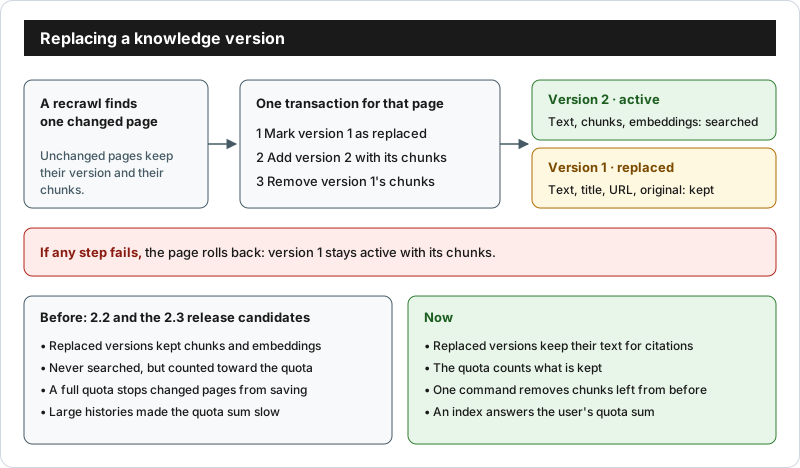
Upload the document again with the same title. Eneo builds the replacement first and makes it searchable only when its text and embeddings are complete. If processing fails, the previous version remains available.
The previous version keeps its text, so citations in earlier answers stay readable. Its chunks and embeddings are removed, because only the current version is searched. Recrawled web pages work the same way: an unchanged page keeps its version, and a changed page replaces only its own previous version.
Delete Documents
- Click the document
- Click Delete
- Confirm deletion
Deleting a document removes its text and all of its chunks and embeddings. Deleting a collection or website removes every document in it.
Free Space Held by Earlier Versions
Eneo 2.2.0 up to and including 2.3.0-rc.3 kept the chunks and embeddings of
every replaced version. Nothing searched them, but they counted toward the
storage quota and took database space. On websites that are recrawled often,
they can fill the quota so that changed pages are no longer saved (crawl
problems show TENANT_QUOTA_EXCEEDED).
Current releases remove this data when they replace a version. Remove what earlier releases left behind once, with the guide Free Space Held by Earlier Versions. Eneo keeps running while it works, and the text, originals and citations of earlier versions stay.
Performance
Worker Capacity
The general worker runs with RUN_AS_WORKER=true; crawler execution requires
the dedicated crawler service as well. Both use the backend image. Two
settings in env_backend.env control throughput:
# Concurrent jobs per worker process (default 15)
WORKER_MAX_JOBS=15

# Concurrent crawl jobs per tenant (default 4). Use the same value on the
# backend and every worker.
CRAWL_JOB_TENANT_CONCURRENCY_LIMIT=4
Keep WORKER_MAX_JOBS at or below roughly 60 % of DB_POOL_SIZE + DB_POOL_MAX_OVERFLOW so the API keeps enough database connections. The
backend template documents the sizing table. To add capacity, run an
additional worker container with the same environment.
Health
GET /api/healthzreports the worker heartbeat; a stale heartbeat returns503GET /api/healthz/crawlerreports crawler health, execution leases and recovery diagnostics
Troubleshooting
Files Not Processing
Check worker status:
docker compose ps worker
docker compose logs worker
curl -s https://your-eneo-instance.com/api/healthz
Common issues:
- Worker not running or its heartbeat is stale
- File type not in the supported list, or a legacy
.doc/.pptfile (unsupported_format) - Encrypted or corrupt file (the job shows
encryptedorcorrupt) - Scanned PDF with no text layer (
no_extractable_text) - File larger than the limit in Admin > File storage
Solution:
docker compose restart workerWeb Crawling Fails
Check error messages:
docker compose logs worker crawler-worker | grep -i crawl
curl -s https://your-eneo-instance.com/api/healthz/crawler \
  -H "X-API-Key: $ENEO_SUPER_API_KEY"
Common issues:
robots.txtdisallows the crawler- The site requires HTTP Basic Authentication that was not configured
- The crawl hit
CLOSESPIDER_ITEMCOUNTorCRAWL_MAX_LENGTH - The website was auto-disabled after ten consecutive failures
Solution:
- Use a sitemap crawl or a more specific start URL
- Raise the tenant’s page or time limit through the sysadmin API
- Change the website’s update interval to re-enable it
Changed Pages Are Not Saved
Symptom: crawls finish, but the crawl problems list TENANT_QUOTA_EXCEEDED
and Eneo keeps answering from older page content.
Solution:
- Run the one-time cleanup in Free Space Held by Earlier Versions. On installations upgraded from 2.2, replaced versions often hold much of the quota.
- If the quota is still full, remove websites or documents that are no longer needed, or crawl less often where that is enough.
- Raise the tenant quota only after checking free disk space: each byte of quota also needs room for indexes and embeddings on disk.
Poor Retrieval Quality
Symptoms:
- AI doesn’t use uploaded documents
- Irrelevant chunks retrieved
- Missing important information
Solutions:
- Narrow the scope: attach only the collections the assistant needs
- Check the embedding model: all sources of one assistant must use a model that fits the content and language
- Set a relevance floor with
INJECT_KNOWLEDGE_MIN_SCOREonce you know your model’s score distribution - Improve document quality: use text-based PDFs, remove boilerplate headers and footers, and keep one topic per document
Using the API
Every operation in this guide is available under /api/v1 and documented in
the Swagger UI at /docs on your instance. Authenticate with an API key in the
X-API-Key header.
Upload one file to a collection (one file per request; the response is a job you can poll):
import requests

BASE = "https://your-eneo-instance.com/api/v1"
HEADERS = {"X-API-Key": "your-api-key"}

with open("doc1.pdf", "rb") as f:
    job = requests.post(
        f"{BASE}/groups/{collection_id}/info-blobs/upload/",
        files={"file": f},
        headers=HEADERS,
    ).json()

status = requests.get(f"{BASE}/jobs/{job['id']}/", headers=HEADERS).json()
Add text directly without a file: POST /api/v1/groups/{id}/info-blobs/
accepts up to 128 text info-blobs per request and embeds them with the
collection’s model.
Create and run a website crawler:
website = requests.post(
    f"{BASE}/spaces/{space_id}/knowledge/websites/",
    json={
        "url": "https://example.com/docs",
        "crawl_type": "crawl",          # or "sitemap"
        "download_files": True,
        "update_interval": "weekly",    # never | daily | every_other_day | weekly
    },
    headers=HEADERS,
).json()

run = requests.post(f"{BASE}/websites/{website['id']}/run/", headers=HEADERS).json()
See the API Reference for authentication details.
Best Practices
- Organize by topic: Create separate collections for different topics
- Use descriptive names: Name documents clearly; the title is what a re-upload matches on
- Keep documents updated: Re-upload changed files; the old version stays searchable until the new one is complete
- Monitor storage: Check disk usage periodically
- Test retrieval: Verify documents are being used in responses
- Start small: Test with a few documents before bulk upload
- Clean data: Remove unnecessary content before upload
Need Help?
- Processing issues: Check troubleshooting docs
- API reference: Swagger UI at
/docson your instance, or the API Reference - GitHub issues: Report bugs
- Email support: digitalisering@sundsvall.se (public sector organizations)