AI Provider Configuration
Eneo is model-agnostic and supports 60+ AI providers through a unified routing layer powered by LiteLLM. Providers and models are managed per-tenant through the Admin UI — no environment variables or server restarts required.
Overview
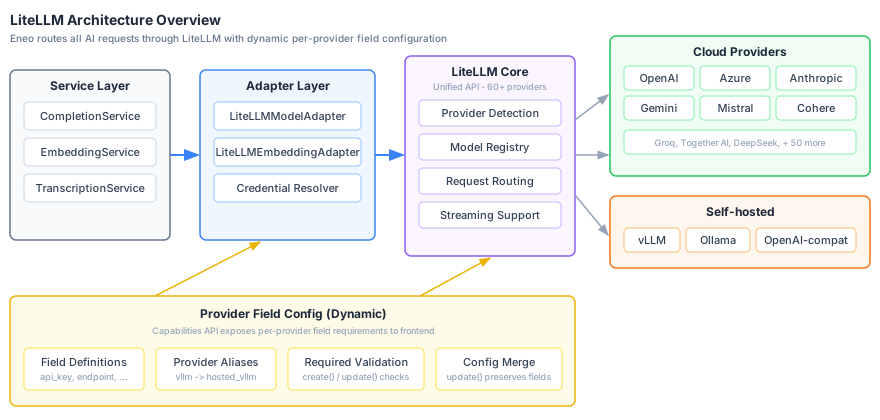
Eneo routes all AI requests through LiteLLM, a unified API layer that normalizes provider differences for completions, embeddings, and streaming. Common providers include:
- OpenAI (GPT-4o, GPT-4o-mini, GPT-5)
- Anthropic (Claude 3.5, Claude 3.7, Claude Haiku 4.5)
- Azure OpenAI Service (GPT-4o, GPT-5 variants)
- Google Gemini (Gemini 1.5, Gemini 2.0)
- Mistral, Cohere, and many more
- Self-hosted (vLLM, or any OpenAI-compatible API)
See the full LiteLLM providers list for all supported providers.
Architecture
Eneo routes all AI requests through LiteLLM, a unified API layer that supports 60+ provider APIs with consistent interfaces for completions, embeddings, and streaming.
How Provider Routing Works
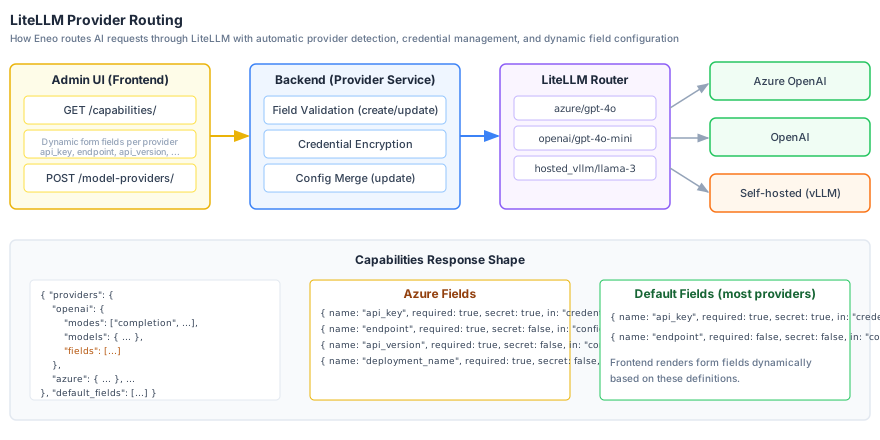
Every model belongs to a provider record, and Eneo always builds the LiteLLM route as <provider type>/<model name> from that record. The prefix is never typed by hand and there is no unprefixed default route:
| Prefix | Provider | Example |
|---|---|---|
azure/ | Azure OpenAI | azure/my-gpt-4o-deployment |
openai/ | OpenAI Direct | openai/gpt-4o |
anthropic/ | Anthropic | anthropic/claude-3-5-sonnet |
hosted_vllm/ | Self-hosted (OpenAI-compatible) | hosted_vllm/meta-llama/Llama-2-7b |
For Azure OpenAI the model name in the route is the deployment name, not the underlying model, so name Azure models after their deployments.
How Providers Are Supported
Eneo uses LiteLLM’s built-in model registry to determine which providers and models are available. This means:
-
If a provider exists in LiteLLM — it shows up automatically in Eneo’s Admin UI when adding models. No code changes needed.
-
If a provider is missing from LiteLLM — you can still connect it using any provider type that speaks the OpenAI protocol. For example, use
hosted_vllm,openai, orollamaand point it at your endpoint. The only requirement is that the server exposes an OpenAI-compatible API (/v1/chat/completions,/v1/embeddings). -
Want a provider to appear with its own name and model list? Send a PR to the LiteLLM project to add it to their model registry. Once merged, it will automatically appear in Eneo with its models listed.
The Admin UI fetches capabilities from LiteLLM’s model registry on load, including supported models, context windows, and feature flags (vision, tool use, reasoning). This data is always up to date with your installed LiteLLM version.
Adding a Provider (Admin UI)
Providers are added per-tenant through the Admin UI wizard. Each tenant can configure their own providers with isolated credentials.
Step 1: Open the Provider Wizard
Navigate to Admin → Models and click Add Model. The wizard guides you through:
-
Select provider type — Choose from the list of available providers (OpenAI, Azure, Anthropic, Gemini, Mistral, Cohere, vLLM, etc.). You can mark frequently used providers as favorites.
-
Enter credentials — The form adapts dynamically based on the selected provider. The backend exposes required fields per provider type via the capabilities API. Common patterns:
- Most cloud providers (OpenAI, Anthropic, Gemini, Mistral, Cohere, etc.): API key + optional endpoint
- Azure OpenAI: API key, endpoint, API version, deployment name
- Self-hosted (vLLM, Ollama, etc.): API key + endpoint URL
- Any other LiteLLM-supported provider: API key + optional endpoint (fields are determined automatically)
-
Select models — The wizard queries the provider’s API (or LiteLLM’s registry) to list available models with metadata (context window, vision support, etc.). Select the models you want to enable.
Step 2: Test Connectivity
After adding a provider, use the Test button to verify that credentials are valid and the endpoint is reachable. The system makes a minimal API call to confirm connectivity.
A stored API key is only ever sent to the endpoint it was entered for. When you change a provider’s endpoint (scheme, host, port or base path), the edit dialog asks for the API key again and the backend rejects the change unless a new key is supplied. Renaming a provider, toggling it, or re-entering the same endpoint in a different spelling does not require the key. Providers configured without a key can change endpoint freely.
Step 3: Enable Models for Users
Once a provider is configured and models are added, tenant admins can enable specific models for their organization through the Models page.
Custom & Self-Hosted Providers
For self-hosted inference servers or providers not natively listed in LiteLLM, use any provider type that speaks the OpenAI protocol — such as hosted_vllm, openai, or ollama — and point it at your own endpoint. The key requirement is that the server exposes an OpenAI-compatible API.
Supported Inference Servers
- vLLM — High-performance inference with OpenAI-compatible API
- Ollama — Local model runner
- LocalAI — OpenAI-compatible local inference
- Text Generation Inference (TGI) — Hugging Face’s inference server
- Any OpenAI-compatible endpoint
Configuration
When adding a custom provider in the Admin UI (e.g., using hosted_vllm, openai, or ollama):
- Name: A descriptive name (e.g., “Internal vLLM Cluster”)
- API Key: Your server’s API key (if authentication is enabled)
- Endpoint: The base URL of your server (e.g.,
http://vllm-server:8000)
The system will query your server’s /v1/models endpoint to discover available models automatically.
Only hosted_vllm treats the API key as optional. Every other provider type without its own field definition — including openai and ollama — requires an API key and treats the endpoint as optional. For an unauthenticated server, either use hosted_vllm or enter a placeholder key.
Hardware Requirements
| Model Size | VRAM Required | Recommended GPU |
|---|---|---|
| 7B | 16GB | RTX 4090, A10 |
| 13B | 32GB | A100-40GB |
| 70B | 140GB | 2x A100-80GB |
Benefits
- Local data path: prompts and files stay inside your infrastructure when the provider is self-hosted
- No API Costs: Only hardware/cloud compute costs
- Customizable: Fine-tune and deploy custom models
- Low Latency: No network round-trip to external APIs
Credential Management
All provider credentials are managed per-tenant and encrypted at rest. There are two ways to manage credentials:
Admin UI (Recommended)
Use the Admin UI provider wizard to add, update, or remove provider credentials. This is the primary method for managing providers.
Sysadmin API
For automation or bulk operations, use the sysadmin credential API. It is only mounted when TENANT_CREDENTIALS_ENABLED=true (otherwise it answers 404), and {provider} must be one of openai, anthropic, azure, mistral, ovhcloud, gemini, or cohere. The body accepts api_key (required) plus endpoint, api_version, and deployment_name for Azure:
# Set provider credentials for a tenant
curl -X PUT "https://api.your-domain.com/api/v1/sysadmin/tenants/{tenant_id}/credentials/{provider}" \
  -H "X-API-Key: your-super-admin-api-key" \
  -H "Content-Type: application/json" \
  -d '{
    "api_key": "your-provider-api-key",
    "endpoint": "https://api.provider.com/v1"
  }'

# List tenant credentials (masked)
curl "https://api.your-domain.com/api/v1/sysadmin/tenants/{tenant_id}/credentials" \
  -H "X-API-Key: your-super-admin-api-key"

# Remove provider credentials
curl -X DELETE "https://api.your-domain.com/api/v1/sysadmin/tenants/{tenant_id}/credentials/{provider}" \
  -H "X-API-Key: your-super-admin-api-key"
Where runtime credentials come from
Runtime LLM calls resolve their credentials exclusively from the tenant’s provider records (the providers created in Admin → Models). A model without a provider is rejected, and the provider’s credentials are never substituted with global ones. Provider API keys in .env (OPENAI_API_KEY, ANTHROPIC_API_KEY, and so on) are not read for completions or embeddings; they only seeded the one-time migration that created the first tenant providers from global models, together with any credentials that had been stored through the sysadmin credential API.
TENANT_CREDENTIALS_ENABLED still exists, but it does not select between a shared and a strict credential mode at runtime. Today it gates the sysadmin credential API above and makes an ENCRYPTION_KEY mandatory at startup. Credentials stored through that API are kept on the tenant record, separate from the provider records that runtime calls use.
Encryption Details
| Aspect | Details |
|---|---|
| Algorithm | Fernet (AES-128-CBC + HMAC-SHA256) |
| Key Source | ENCRYPTION_KEY environment variable |
| Storage | Encrypted in database, masked in API responses |
Backup your ENCRYPTION_KEY: If lost, all stored credentials become unrecoverable and must be re-entered for each tenant.
Generate an encryption key:
uv run python -m eneo.cli.generate_encryption_keyCost Management
Model Pricing in Eneo
Each completion model can carry an indicative input and output price. Admins enter it per million tokens in the model wizard; Eneo stores it per token on the model record and leaves it empty when the price is unknown. Admins always see prices. Regular users see them (for example in the model selector) only while the organization-level Show model pricing toggle on the Admin overview page is on; it is on by default.
Set Budget Alerts
For cloud providers, set up budget alerts:
- OpenAI: Usage limits in account settings
- Azure: Budget alerts in Azure Cost Management
- Google: Budget alerts in Google Cloud Console
Monitor Usage
Check your usage regularly:
- View API call metrics in Eneo’s admin panel
- Review provider dashboards
- Set up automated alerts
Optimize Costs
- Use smaller models for simple tasks
- Implement caching for repeated queries
- Use local models for development/testing
- Set context length limits
Troubleshooting
Invalid API Key (401 Errors)
Symptoms: Authentication errors, 401 responses
Solutions:
- Use the Test button in the Admin UI to verify credentials
- Check if the key has expired or been rotated
- For Azure: Ensure endpoint URL and API version are correct
Rate Limit Errors (429)
Symptoms: 429 status codes, “rate limit exceeded”
Solutions:
- Check your API tier limits with the provider
- Consider adding multiple providers for load distribution
- Upgrade your API tier if needed
Model Not Available
Symptoms: Model name not recognized, routing errors
Solutions:
- Verify the model is enabled for the tenant in the Admin UI
- Check that the provider has valid credentials configured
- For self-hosted: Verify the server is running and the model is loaded
- Use the Validate Model feature in the Admin UI to test specific models
Credential Decryption Errors
Symptoms: “Failed to decrypt credential” errors
Solutions:
- Verify
ENCRYPTION_KEYis set correctly in environment - If key was changed/lost, re-enter credentials via the Admin UI
- Check that credentials were stored with the current encryption key
Connection Errors
For cloud providers:
- Check internet connectivity
- Verify firewall allows outbound HTTPS (443)
- Check provider status pages
For self-hosted:
- Verify the inference server is running
- Check the URL and port configuration
- Ensure Docker network allows communication
Security Best Practices
-
Protect API Keys
- Never commit keys to version control
- Use the Admin UI or credential API for multi-tenant deployments (encrypted storage)
- Rotate keys regularly
- Use separate keys for development and production
-
Encryption Key Management
- Securely backup
ENCRYPTION_KEY - Store in secrets manager (AWS Secrets Manager, HashiCorp Vault)
- Never share or commit encryption keys
- Securely backup
-
Network Security
- Use HTTPS for all API connections
- For self-hosted: Use VPN or private networks
- Implement firewall rules for inference endpoints
-
Access Control
- Limit
ENEO_SUPER_API_KEYaccess to administrators - Use separate credentials per tenant
- Monitor credential API usage for anomalies
- Limit
-
Data Handling
- Review provider data policies before use
- Use self-hosted models for sensitive data
- Consider data residency requirements
Need Help?
- Check the Audit Logging Guide
- Visit GitHub Issues
- Review provider documentation: