Audit Logging Guide
Audit logging helps organizations track sensitive actions, meet compliance requirements, and investigate incidents. This guide explains how to enable, configure, and use audit logs in Eneo.
For developer-focused details, see Audit Logging (Technical).
What audit logging covers
Audit logs capture actions such as:
- User and role management (create, update, delete)
- Assistant, space, and app changes
- Security classification and access updates
- File and integration events
- Audit log access and exports
Logs are stored in PostgreSQL and are scoped to your tenant.
Enable audit logging
Audit logging can be turned on or off globally in the admin UI.
- Go to Admin and use the Audit logging toggle on the admin overview page to enable or disable logging for your tenant
- The logs themselves, the per-category and per-action configuration, exports, and the retention setting live under Admin → Analytics & logs → Audit Logs
When disabled, no new audit logs are created.
Configure what gets logged
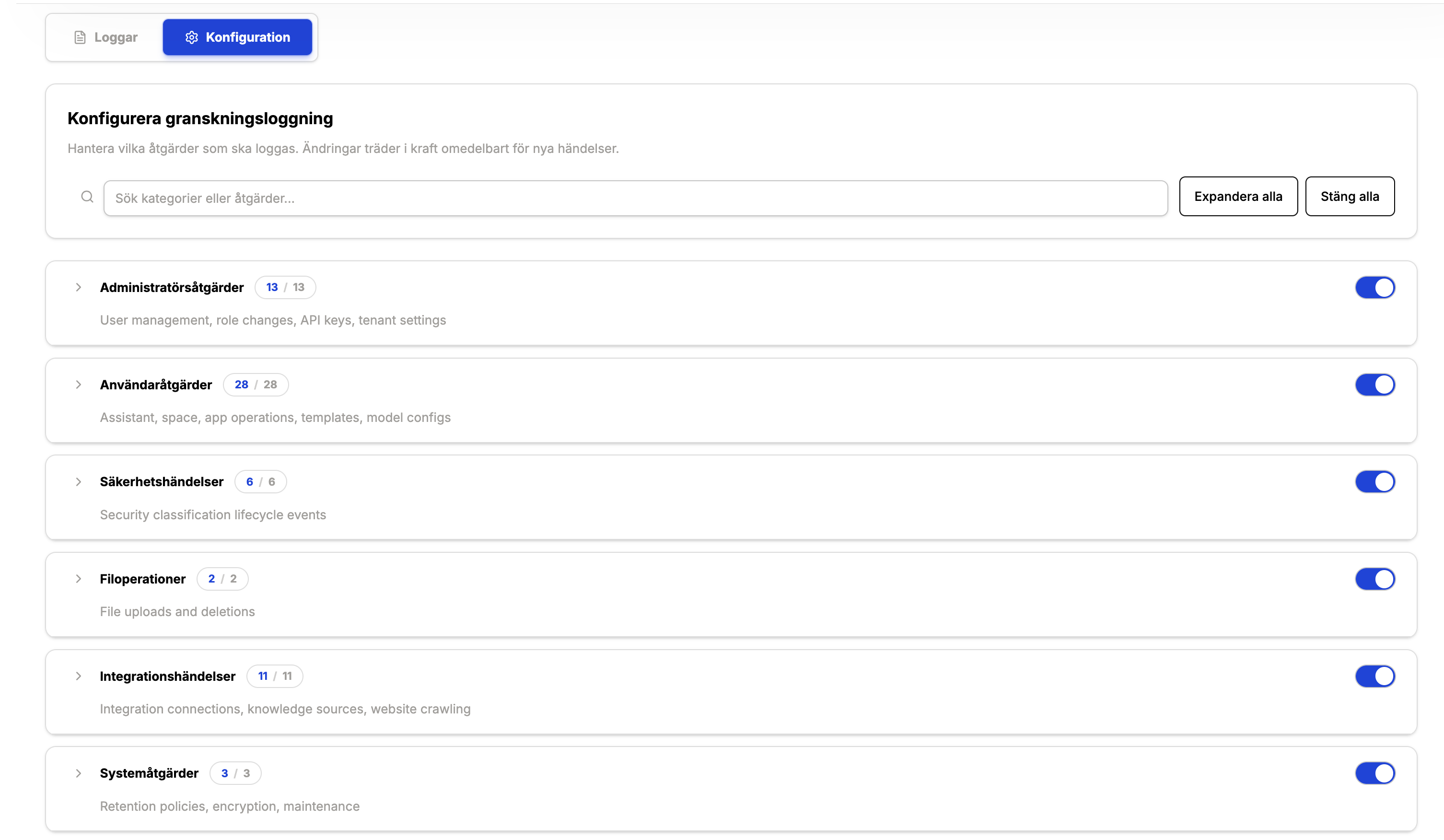
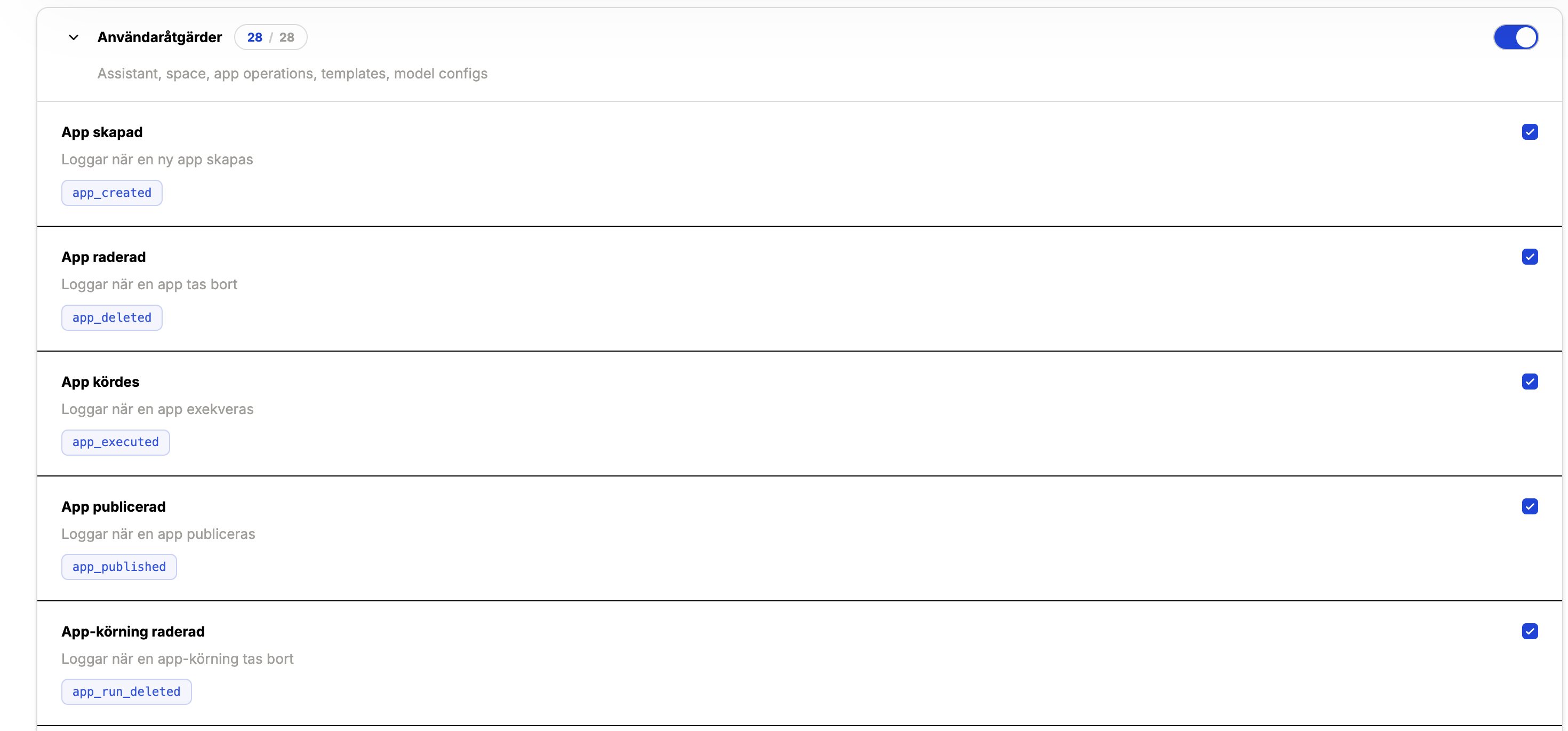
You can fine-tune logging in two levels:
- Category toggles — enable/disable entire groups of actions (e.g., Administrator actions).
- Action toggles — enable/disable specific actions within a category (e.g.,
user_created).
Changes apply immediately for new events. Historical logs remain unchanged.
Viewing audit logs
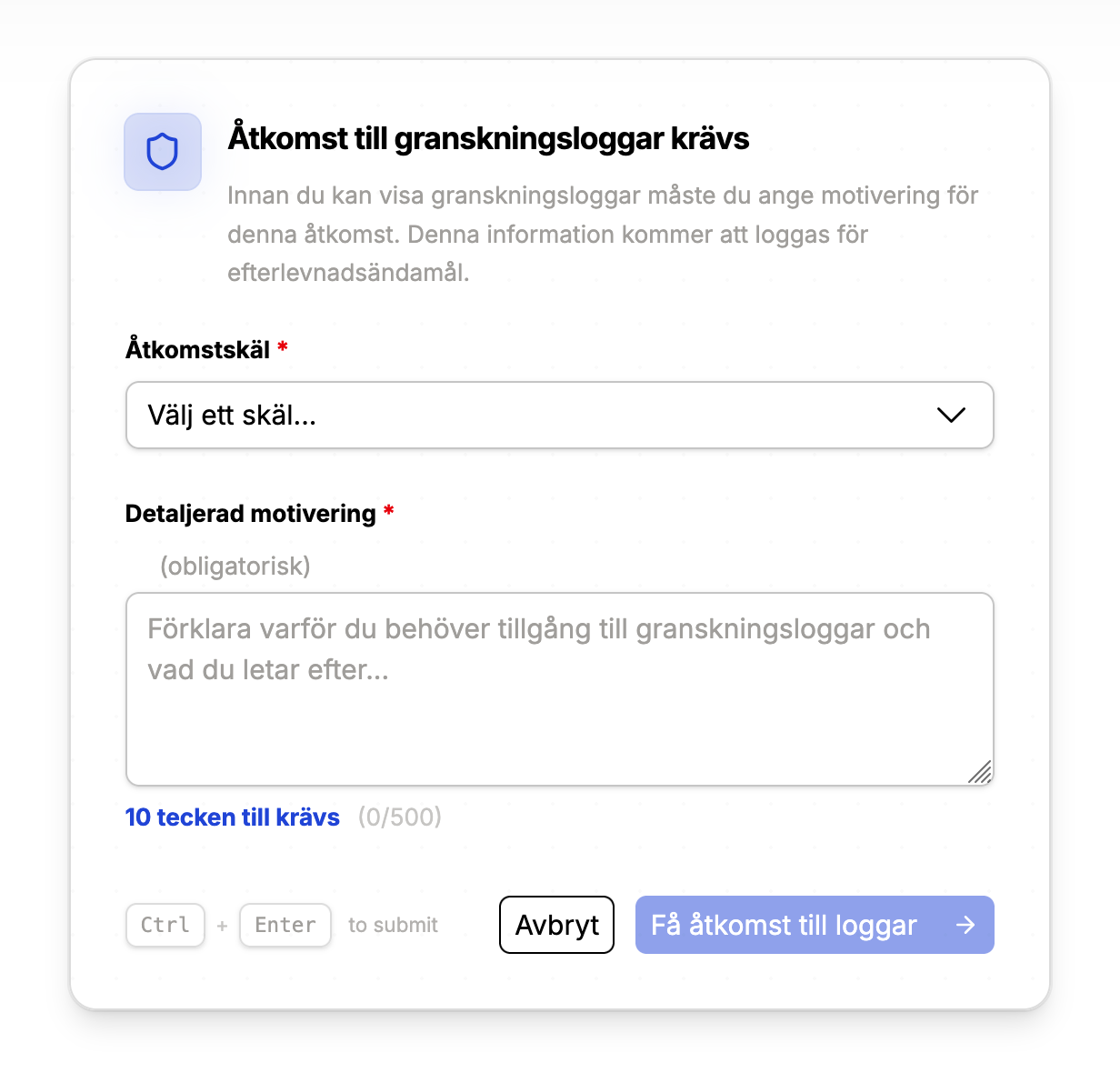
Access to audit logs requires an access justification. This ensures you can track who accessed logs and why.
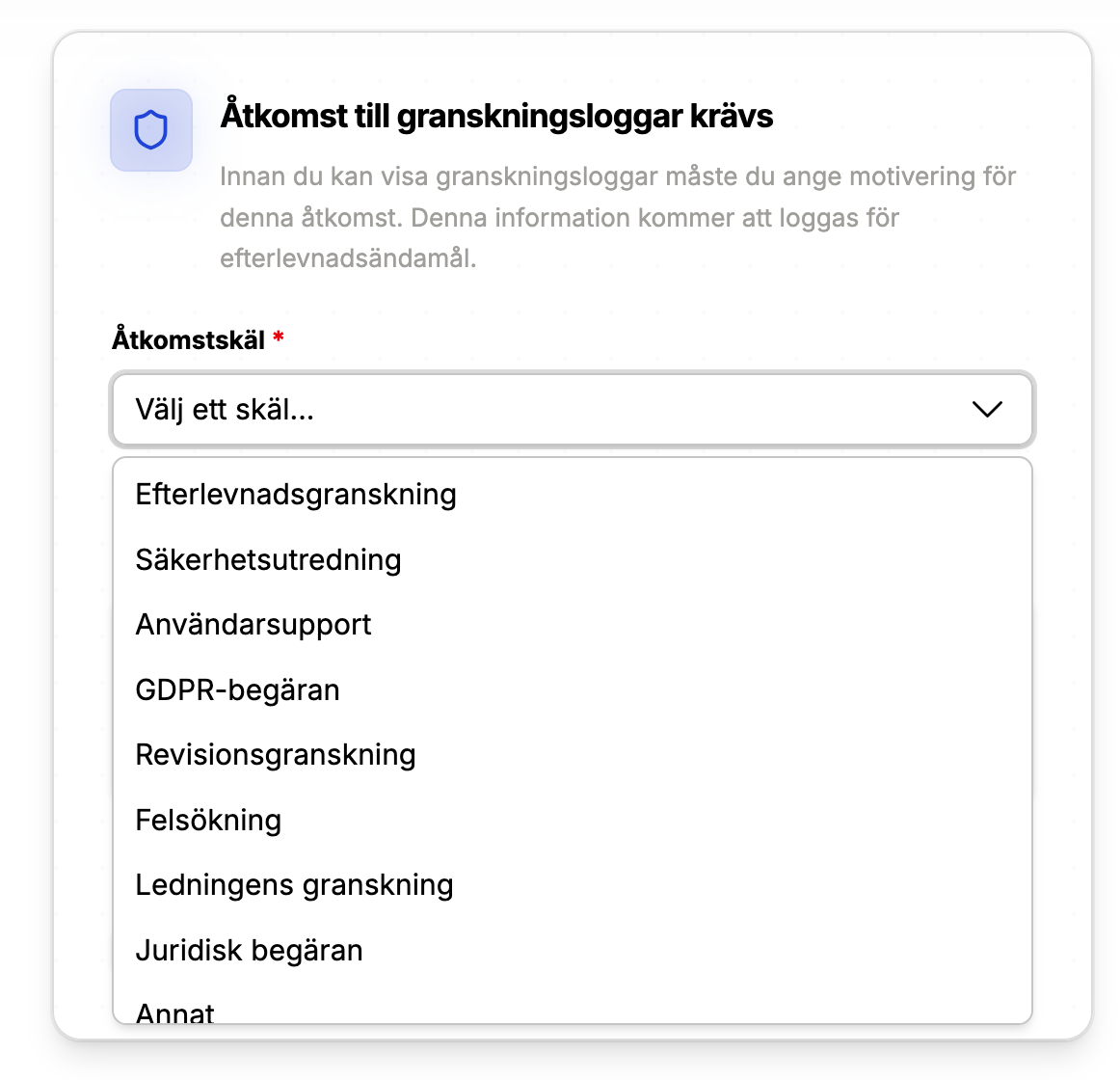
When you enter the audit log view, you will be prompted to:
- Select a reason category (e.g., GDPR request, investigation)
- Provide a written justification
The access event itself is logged and included in the audit trail.
Filters and search
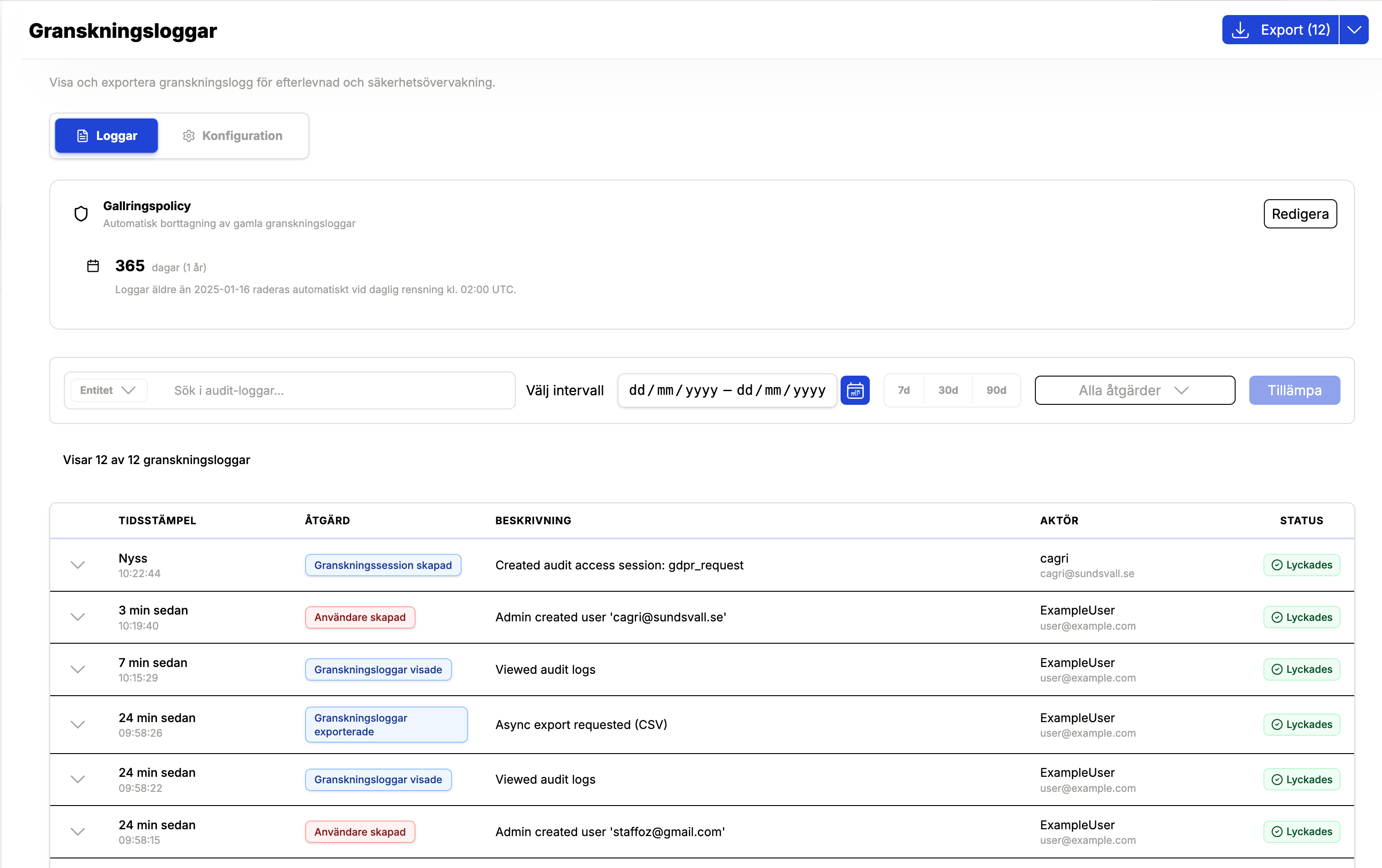
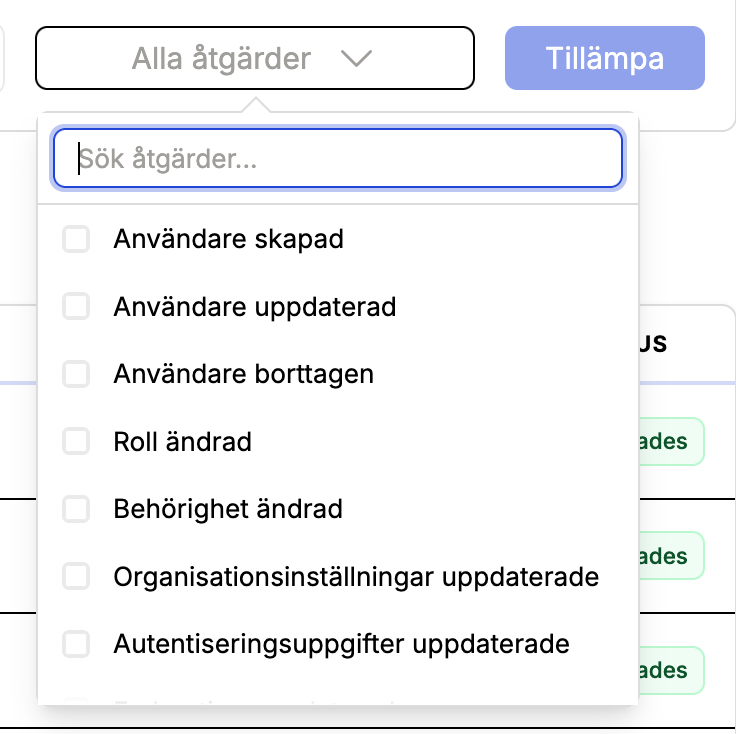
You can filter logs by:
- Action (multi-select)
- Date range
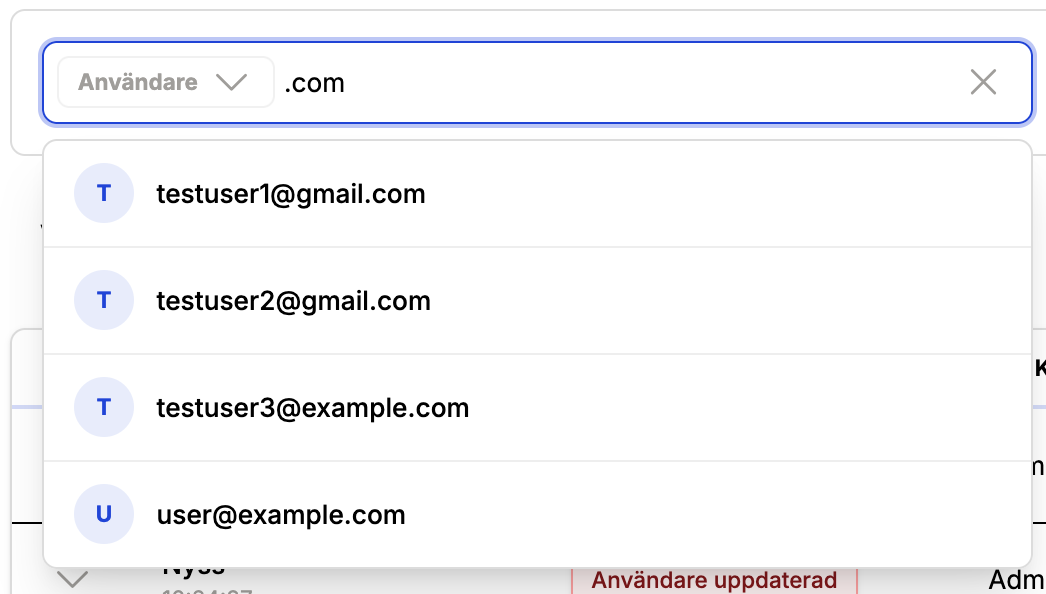
- User (the actor, found by searching on email)
The search box has two scopes: User searches for an actor by email, and Entity is a free-text search (at least three characters) that matches the log description. If you want a name or identifier to be searchable, include it in the log description or metadata.
Log details and JSON
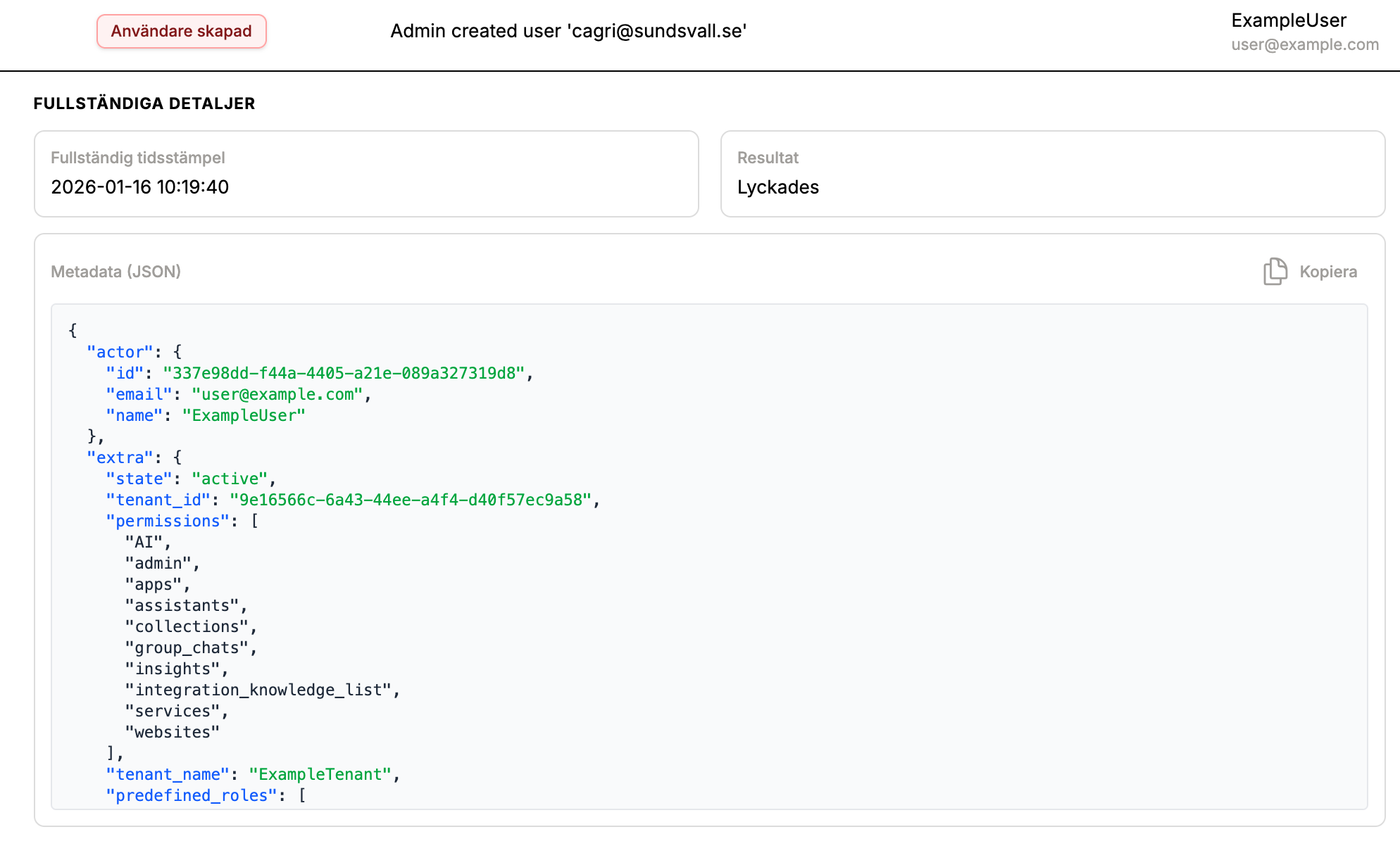
Each log row expands into a detail view with:
- Full timestamp and status (success/failure)
- Human-readable description
- JSON metadata (copyable)
This metadata includes actor and target snapshots for reliable investigation even if data changes later.
Retention policies
Audit log retention is configured per tenant, in days, on the Audit Logs page and enforced by a daily purge job. Logs older than the retention period are permanently deleted.
Conversation data (questions and app runs) has its own retention hierarchy, set per space, assistant, or app. See Retention on the technical page for the hierarchy, its limits, and the API.
Exporting audit logs
Audit logs can be exported from the UI for compliance or incident response.
- Formats: CSV or JSON Lines (
.jsonl) - Large exports: handled asynchronously for performance and stability
Exported files are retained for 24 hours before cleanup.
UI walkthrough
Access justification
Best practices
- Keep audit logging enabled for production tenants.
- Use action-level toggles instead of disabling whole categories.
- Set retention policies that align with regulatory requirements.
- Use async exports for large time ranges.
Need developer details, or the plans for external audit sinks? See the Audit Logging (Technical) documentation and its Roadmap.